
Modern, sustainable, and always up-to-date contact sharing for HammondCare employees

A modern, eco-friendly way to share your professional contact information
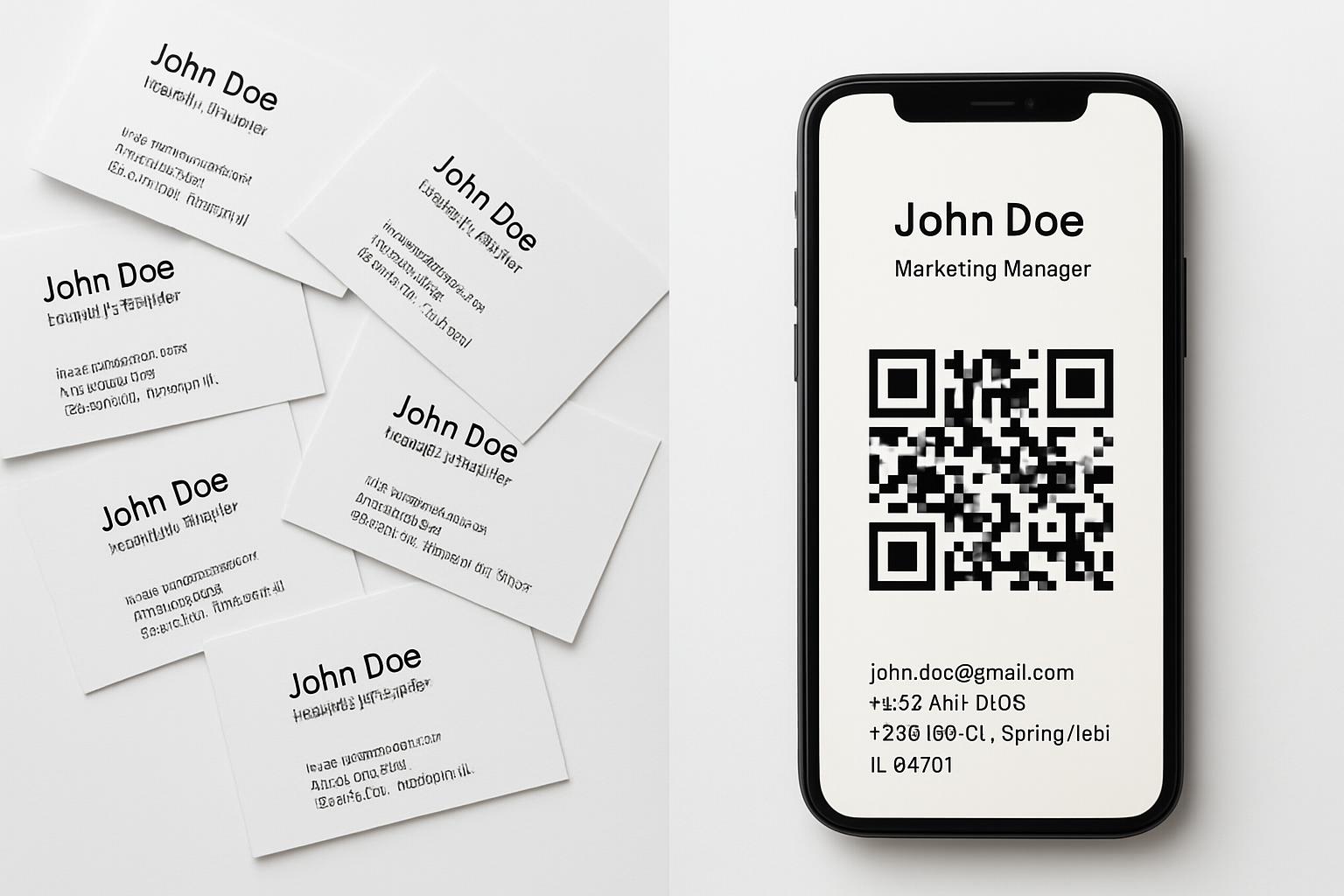
Digital business cards are a modern alternative to traditional paper business cards. Instead of physical cards, your contact information is stored digitally and can be easily shared through various methods, such as QR codes, email, or text messages. They offer a dynamic and eco-friendly way to exchange professional details.
Digital cards eliminate the need for paper, reducing waste and supporting sustainability efforts.
Information can be updated instantly, ensuring your contacts always have your most current details.
Your digital card is always accessible on your device - no more being caught without a business card.
Streamlines the process of exchanging contact information, making networking more efficient.
Designed specifically for HammondCare employees with our values in mind
The HammondCare Digital Business Card solution is an internally developed system designed to provide a modern, efficient, and sustainable way for employees to share their contact information. This solution aims to replace traditional paper business cards, offering dynamic and always-current contact details.
Unlike static paper cards, your digital business card ensures contact details are always up-to-date, pulling the latest information from Active Directory when viewed.
Accessible as an image (QR code) and/or through a Progressive Web App (PWA) on any device - laptop, phone, or tablet.
Digital business cards are branded with the appropriate HammondCare, Dementia Centre, or DSA logo, depending on your role.
Yes, employees can customise the data they share from their Active Directory profile within set restrictions. For example, you can choose to display your name, job title, phone, email, address, and photo. Please note that DSA (Dementia Support Australia) consultants have specific branding requirements and may have fewer customisation options to ensure consistency with their programme guidelines.
Your business card and vCard can include your photo, making it more personal and professional.
Contact details are sourced directly from Active Directory, ensuring accuracy and consistency across the organization.
This digital business card solution aligns with HammondCare's commitment to innovation, sustainability, and efficiency. By reducing paper waste, it supports environmental responsibility. By providing an easy-to-use and always-current contact sharing method, it enhances professional interactions and streamlines communication, reflecting HammondCare's dedication to quality and effective operations.
Clear, non-technical instructions for using your HammondCare Digital Business Card
Access the Digital Business Card creator. Here, you can select which information from your Active Directory profile you wish to display on your business card. You will see a list of data points that can be included.
After making your selections, click the "Update and display QR code" button. This will refresh the preview on the right side of the screen, showing you how your business card will appear, and generate the QR code for your card.
If you configured your digital business card on a laptop or another device, you can easily install it on your phone. Click the "Install QR code on another device" button. This will display a QR code that, when scanned from your phone, will allow you to install your business card as a Progressive Web App (PWA) directly onto your phone.
To easily access your digital business card, you can install it as an app on your current device. Click the "Install App" button. This is a Progressive Web App (PWA), meaning it will work across various devices, including your laptop, phone, or tablet.
Below the QR code preview, you will find a button to "Download the QR code image as a jpeg file." Clicking this will save the QR code image to your device. You can then use this image in messages, documents, or even your email signature.
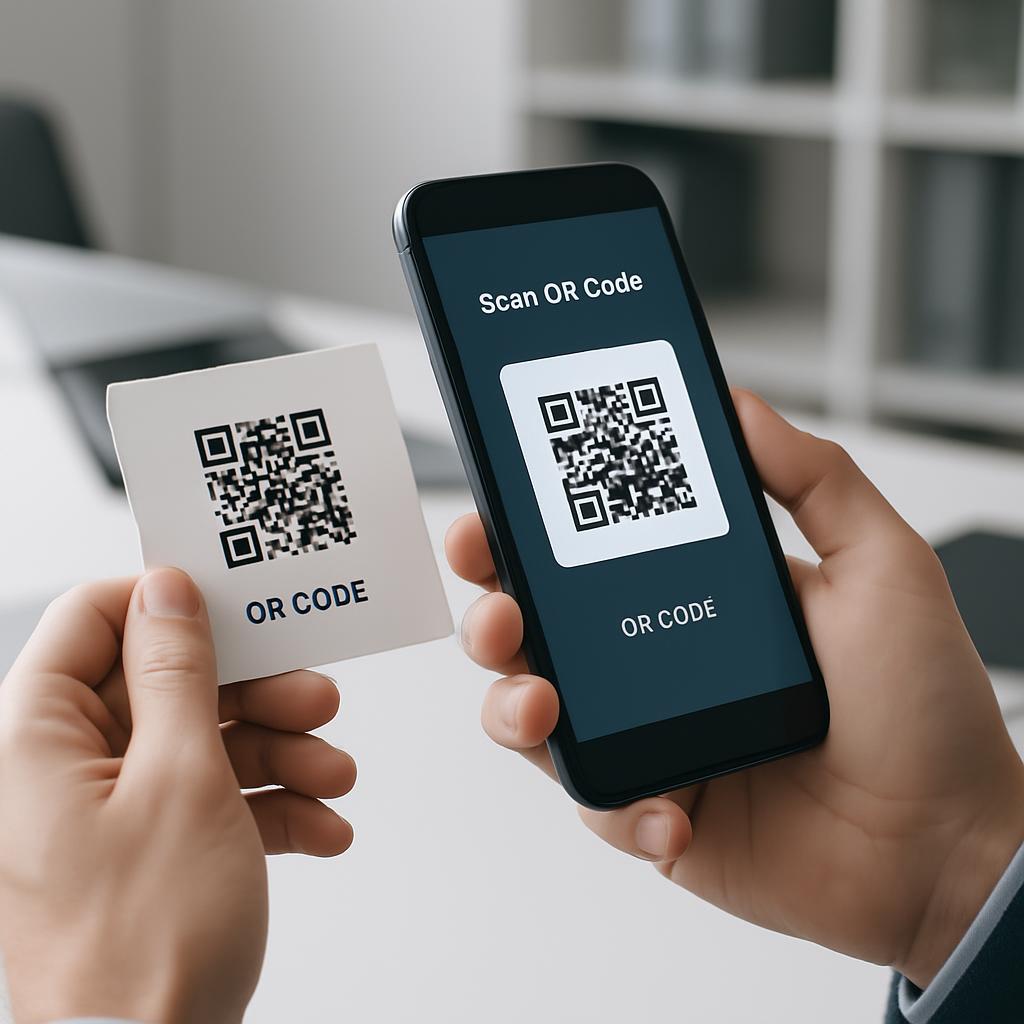
Instruct your contact to use their phone, tablet, or a QR reader on their PC to scan the QR code you present. This will direct them to a website displaying your business card details.
The website will show your contact your information, including your name, job title, contact details, and potentially a photo. Depending on your role, they might also see specific branding and a clickable feedback link for DSA Dementia Consultants.
Instruct your contact to click on the "Download contact to your device" button. This will initiate the contact download process.
Depending on the settings you have chosen, they may have the option (or requirement) at this point to send you their contact details by filling out a simple form. This allows you to collect leads and build professional relationships:
Note: DSA Dementia Consultants automatically have contact collection disabled.
Important: After the contact card (.VCF file) downloads, advise your contact to open the downloaded file and press "SAVE" or "IMPORT" within their contact manager. If they only view the contact without saving, it will not be stored on their device.
Common questions and troubleshooting tips
To view the full details of a digital business card, an internet connection is required as the information is pulled dynamically from Active Directory. However, you can scan the QR code offline, and the details will become accessible once you are back online.
Yes, employees can customise the data they share from their Active Directory profile within set restrictions. For example, you can choose to display your name, job title, phone, email, address, and photo. Please note that DSA (Dementia Support Australia) consultants have specific branding requirements and may have fewer customisation options to ensure consistency with their programme guidelines.
One of the key benefits of the HammondCare Digital Business Card solution is that your information is always current. Since the QR code links to dynamically updated data from Active Directory, any changes to your details will be automatically reflected when someone views your card.
Yes, the QR code can be printed on a badge or document. Because the QR code contains only a URL that pulls current information, it will always be up-to-date. If you leave HammondCare, it will default to generic HammondCare contact information. However, the QR code should never be printed on a security pass because if the pass is lost that would just give someone knowledge of which company you work for and therefore which building they might be able to break into using your pass.
After scanning a QR code and viewing the business card details, click on the "Download contact to your device" button. This will download a .VCF file. Open this file and ensure you click "SAVE" or "IMPORT" within your device's contact manager to permanently store the contact.
Ensure good lighting and that the QR code is clear. Try holding your device steady at a good distance from the QR code.
Check your internet connection. The digital business card details require an active internet connection to load.
After downloading the .VCF file, you must explicitly save or import the contact within your contact management application.
Our support team is here to assist you
For any technical issues or questions regarding your digital business card, please contact IT Support:
Visit IT Support Portal